
Key takeaways:
- Start with Search Console: the Pages report shows which pages aren’t indexed and why.
- Most problems fall into one of three groups: crawling, indexing or ranking. Each needs a different fix.
- A robots.txt block, a noindex tag or the WordPress “Discourage search engines” setting can remove an entire site.
- A page that was crawled but not indexed is usually thin or duplicated, not a technical fault.
- A page that is indexed but doesn’t appear in search needs content work, not a technical fix.
First: where is it getting stuck?
To appear in search, a page has to pass three stages: Google reaches and crawls it, adds it to the index, and ranks it against other pages. Each of the 9 reasons in this guide stops the page at one of those stages.
The first check takes a minute: search Google for the page’s full URL, or use the URL Inspection tool in Search Console. If the tool says the page is indexed, the problem is ranking. If not, the tool also shows the reason.
| Stage | What you see | Where to check |
|---|---|---|
| Crawling | Google doesn’t reach the page, or gets blocked | URL Inspection, robots.txt, the Pages report |
| Indexing | The page was crawled but not added to the index | The Pages report, the “Why pages aren’t indexed” table |
| Ranking | The page is indexed but doesn’t appear for searches that matter to you | The Performance report: impressions and average position by query |
Crawling problems
1. The site is blocked from crawling
The most common reason an entire site disappears. WordPress has a setting called “Discourage search engines from indexing this site” that people tick during development and forget to untick. It adds a noindex tag to the whole site. A line like Disallow: / in robots.txt also blocks the entire site.
How to check: open /robots.txt in your browser, and check the WordPress Reading settings to make sure the box is unticked. In Search Console, URL Inspection shows whether crawling is allowed.
2. A security layer is blocking Google
Security services such as Cloudflare, or a security plugin on the server, can block Google’s crawler, for example through rate limiting or country blocking. From the outside the site looks fine, but Google gets an error.
How to check: in URL Inspection, click “Test live URL”. If you get a server error or “Blocked”, review the security rules and server logs.
3. The page isn’t linked from anywhere
Google discovers pages through links and sitemaps. A page with no link from the menu, another page or the sitemap is called an “orphan page”, and Google may never reach it.
How to check: make sure the page is in the sitemap submitted to Search Console, and that at least one other page on the site links to it.
Indexing problems
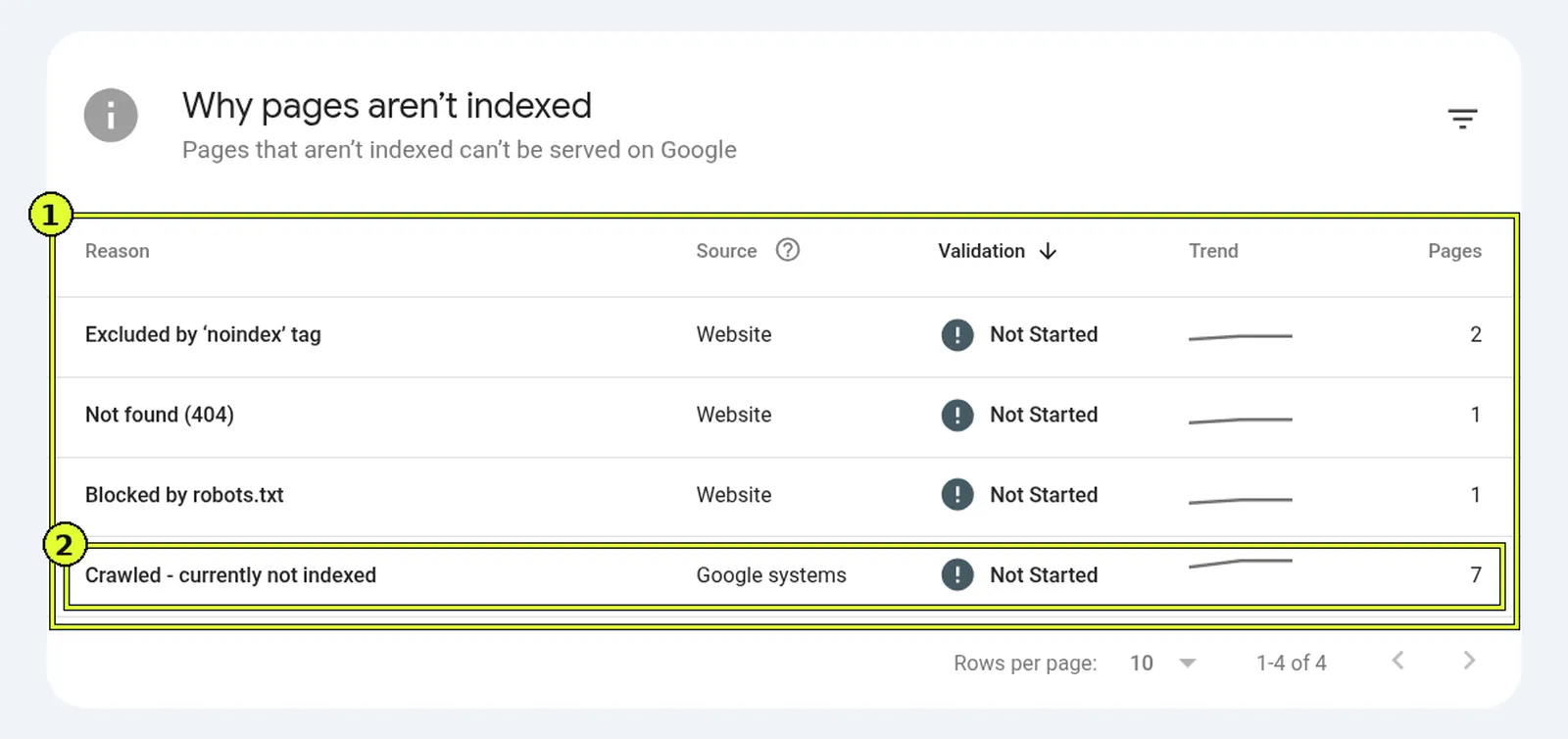
The Pages report in Search Console splits your pages into two groups: indexed and not indexed. Below the chart is a table with the reason for each group. Some reasons are perfectly normal, and some need fixing.
4. A noindex tag on important pages
A noindex tag tells Google not to add the page to the index. It fits thank-you pages, internal search results or test pages. When it appears on a service page, that page will never show up on Google.
How to check: in the Pages report, under “Excluded by ‘noindex’ tag”. Go through the list and make sure it doesn’t include pages that should appear. In your SEO plugin (such as Rank Math or Yoast), check the page’s Robots setting.
5. Google crawled the page but decided not to index it
The status “Crawled – currently not indexed” is usually not a technical fault. Google read the page and decided it doesn’t add enough: too little content, content similar to other pages on the site, or no reason to show it in search.
What to do: expand the page with useful information, merge similar pages into one strong page, and link to it from other pages on the site.
6. Duplicate pages and canonical URLs
When several URLs have the same content, for example with and without www, with parameters or as a print version, Google picks one to show. Sometimes it picks a different one from the one you wanted.
How to check: in the Pages report, under statuses such as “Duplicate without user-selected canonical”. Add a canonical tag pointing to the preferred URL, and 301-redirect duplicate URLs.
7. 404 errors and broken redirects after a site change
After a rebuild or a change in structure, old URLs that were on Google return 404. Their traffic disappears, and Google drops them from the index.
How to check: in the Pages report, under “Not found (404)” and “Soft 404”. For every old URL that has a replacement, set up a 301 redirect to the matching page. We did exactly that on our own site, and describe it in our Organic SEO guide.
Ranking problems
8. The page is indexed but doesn’t answer the search
A service page written in general terms, with no prices, no service area and no answers to the customer’s questions, loses to pages that cover all of that. Google ranks pages, not sites, so every important service needs its own page.
How to check: in the Performance report, filter by the page and see which queries it appears for and at what average position. A page at position 8-20 is usually the best place to start improving.
9. A manual action, or a very new site
A manual action is a penalty Google applies to a site that violates its spam policies, for example by buying links. It’s rare, but when it happens traffic drops all at once. On the other hand, a brand-new site simply needs time for Google to crawl it and understand what it’s about.
How to check: in Search Console, under “Security & Manual Actions”. If there’s no notice there, the problem isn’t a penalty.
What to do now
- Open Search Console and check the Pages report: how many pages aren’t indexed, and for what reasons.
- Run URL Inspection on your most important service page.
- Check robots.txt and the WordPress “Discourage search engines” setting.
- Submit a sitemap, if you haven’t already.
- For pages that are indexed but don’t appear, check the Performance report for queries where they’re close to page one.
If the cause still isn’t clear after these checks, a professional site audit usually saves months of trial and error.
Frequently asked questions
How long does it take a new site to appear on Google?
Usually a few days to a few weeks from the moment the site is open to crawling and has links or a sitemap pointing to it. Submitting a sitemap and requesting indexing in Search Console speeds things up, but doesn’t guarantee indexing.
My site shows up when I search its name, but not when I search for the service. Why?
That means the site is indexed and the problem is ranking. The service page needs to answer the search better than the pages above it. We cover what that involves in our Organic SEO guide.
Does requesting indexing in Search Console get the page indexed?
No. It adds the page to the crawl queue. Google still decides whether to index it, based on the page’s quality and whether it differs from other pages on the site.
Can a site with only a few pages appear on Google?
Yes. Even a five-page site can rank if each page answers its search well. The number of pages doesn’t determine quality, and Google warns against pages created only to capture queries.
My site suddenly disappeared from Google. What should I check first?
Three things: whether someone changed a setting that blocks crawling (such as “Discourage search engines” in WordPress), whether there’s a manual action notice in Search Console, and whether the site moved to a new address without redirects.
Sources: Page indexing report, Search Console Help · How Search works, Google Search Central · Block Search indexing with noindex, Google Search Central.
Still can’t find the cause?
In a site audit, we crawl your site the way Google does, go through Search Console, and show exactly which pages aren’t getting indexed and why. You get a list of fixes in order of priority.